
R.E.P.O. Unity Project Setup
A guide for setting up your Unity Project to create mods for R.E.P.O.
The Unity workflow is primarily needed for creating Valuables, Shop Items, Enemies, Levels and Cosmetics.
By combining the REPOLib-Sdk Unity Editor package with the core REPOLib DLL, you can build mods entirely without writing code. However, without any coding knowledge, you will be limited on what you can do.
While REPOLib isn't strictly mandatory, it is highly recommended, especially if you are new to R.E.P.O. modding.
For experienced developers, REPOLib is fully extensible, meaning you can still seamlessly integrate your own custom C# scripts alongside it.
OS-SPECIFIC STEPS
Parts of this guide differ between Windows and Linux. Make sure to install and use the correct options for your operating system.
Prerequisites
Download and Install the following:
- Git This is required for installing packages via Git URL in Unity.
- .NET SDK: Required for AssetRipper to run.
- For Windows: Version 9.0
- For Linux: Version 10.0
- Unity Hub
- Unity Editor 2022.3.62f3
Unity Project Setup
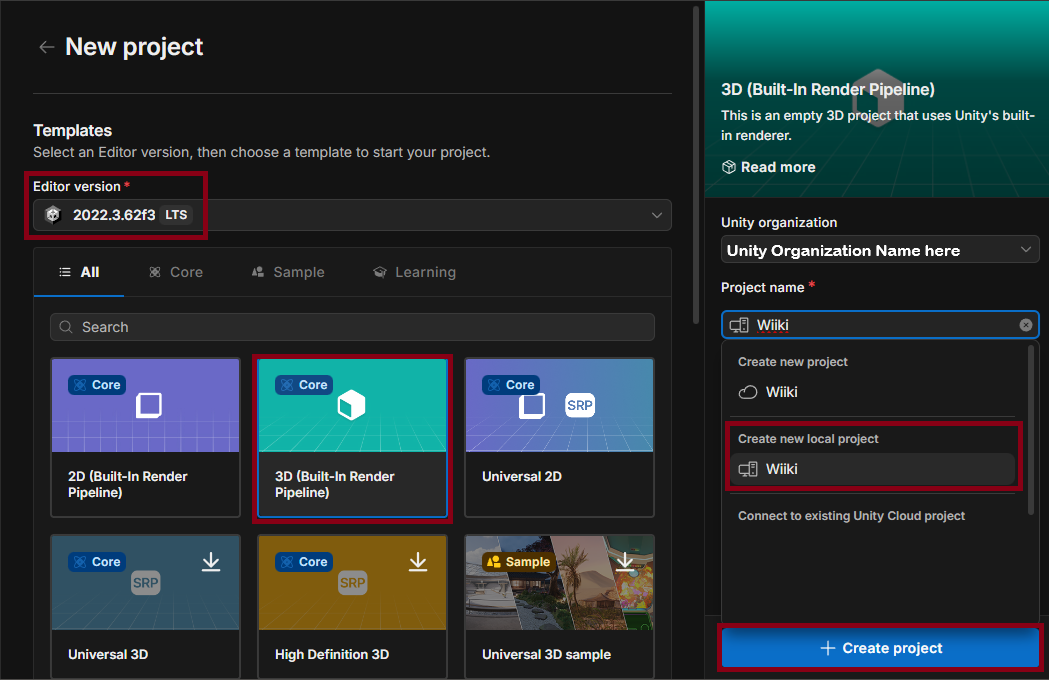
Create a new Unity project with the following configuration (see image below):
- Editor Version:
2022.3.62f3 - Project Location: Local Project
- Template: 3D (Built-In Render Pipeline)
Once Unity fully opens, navigate to the Menubar and click Window > Package Manager.
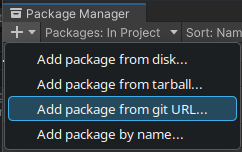
Click the + button at the top left of the Package Manager Window and chooseAdd package from git URL... and install the required Unity Packages by pasting the following links one by one into the Text field:
WARNING
If you had Unity open before installing Git, it will complain about Git not being installed.
In this case, close the Unity Editor and Unity Hub, and make sure they are actually fully closed.
If nothing is working, try restarting your PC.
Unity Project Patcher:
https://github.com/nomnomab/unity-project-patcher.githttps://github.com/Jettcodey/unity-project-patcher.gitUnity Project Patcher BepInEx:
https://github.com/Kesomannen/unity-project-patcher-bepinex.githttps://github.com/Jettcodey/unity-project-patcher-bepinex.gitUnity REPO Project Patcher:
https://github.com/ZehsTeam/unity-repo-project-patcher.githttps://github.com/Jettcodey/unity-repo-project-patcher.gitPlease make sure to only use these git links when setting up the R.E.P.O. Unity Project Patcher!
Run the Project Patcher
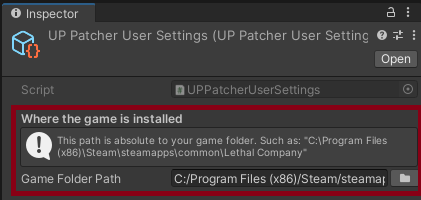
Navigate to the Menubar and click Tools > Unity Project Patcher > Configs > UPPatcherUserSettings:

You will now see new options in the Inspector panel. Leave all the Pre filled fields as they are and only Enter the path to your game folder.

Back to the Menubar and open the Patcher Window by going to Tools > Unity Project Patcher > Open Window.
In the newly opened UPPatcher - RepoWrapper window, click on Enable BepInEx at the bottom of the window and wait for the process to finish.

Once BepInEx is enabled, click Run Patcher at the Top of the window to begin patching the project:

Expected patch behavior
- Fresh patch time: ~25-35 minutes.
- Unity will restart approximately 5-6 times during the process.
- Simply click OK on the 4 popups when prompted after starting the process.
After Unity restarts for the final time, a confirmation window will appear indicating the project has been successfully patched.
Patching process has failed or got stuck?
First, check the Unity Console for specific errors and verify that you've installed all Prerequisites.
If everything looks correct, join the R.E.P.O. Modding Server and ask for help in the #development channel.
You will need to acquire the Modder role from ≣ Channels & Roles.
Now that your Unity Project is successfully patched, we recommend adding the REPOLib SDK to your project to make the workflow easier.